How it works
How to convert a picture to a GameCube texture (free tool)
Short answer: to convert a picture to a GameCube texture, open the free GameCube texture converter, drop your picture in, and let "Best for this picture" choose the format, or pick CMPR, RGB5A3, RGB565, IA8 or I8 yourself. Choose a power of two size and whether to add mipmaps, then download a PNG or the GX texture data. It runs in your browser, needs no account and uploads nothing.
On this page
What the tool is
The converter is free, with no account and no gems. Your picture stays on your computer: under the preview the page says "Converted in 12 ms, in your browser. Nothing was uploaded." The only thing that ever sends the picture anywhere is the "Make a game with it" button, and only after you press it.
It is the Shiny Gen engine's own C++, the same code our GameCube build runs when it imports a texture, compiled to WebAssembly so it works in a browser tab. The texture data you download is stored exactly as our GameCube games store it.
Step by step
1. Add a picture. Drop, paste or pick any picture your browser can open, at any size (very large ones are read at most 2048 pixels a side). The page also has samples: Photo, Drawing, Pixel art and Landscape.
2. Choose a format. The default, "Best for this picture", picks CMPR when the alpha is all on or all off, and RGB5A3 when the picture has soft alpha. The formats are:
- CMPR: S3TC-like compression at 4 bits a pixel. Each 4x4 block takes 8 bytes, and blocks are stored in 8x8 tiles of four.
- RGB5A3: 16 bits a pixel. It stores 15-bit color when the pixel is opaque, and otherwise 4-4-4 color with 3 bits of alpha.
- RGB565: 16 bits, color only, no alpha.
- IA8: 8-bit gray plus 8-bit alpha.
- I8: 8-bit gray.
3. Choose a size. Sizes are powers of two from 8 to 256 a side. Our GameCube games use up to 256, and the 3D figure on this site's start card uses 128.
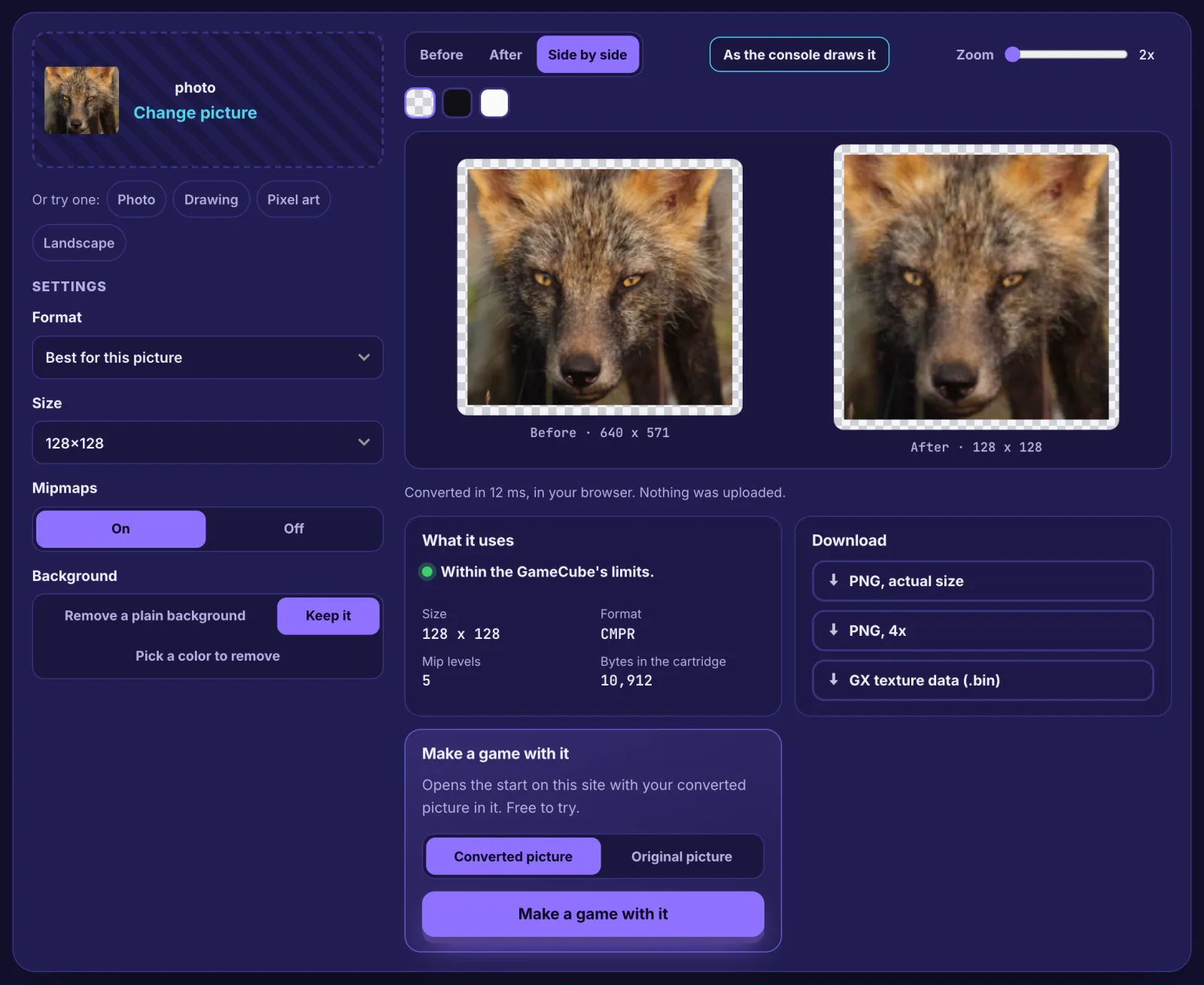
4. Mipmaps on or off. With mipmaps on, the texture also stores smaller copies, each half the one before, down to 8 pixels on the shorter side, after the base level. The picture below uses 128x128 with mipmaps on, and the page reports 5 mip levels.
5. Background. "Remove a plain background" cuts out a plain border color, "Keep it" leaves the picture whole, and "Pick a color to remove" lets you tap the picture and set a tolerance. A background or texture is center-cropped to its shape, never squashed, and then area-filtered before the console's own quantizer runs.
6. Preview. The preview has Before, After and Side by side, a zoom slider and checkerboard, dark and light backdrops. The "As the console draws it" button shows the texture with the bilinear filtering the GameCube applies; switch it to "Raw pixels" to see the texels as they are.
Read the "What it uses" card
A green dot and "Within the GameCube's limits." tell you the result fits. Below it you see the size, the format, the number of mip levels and "Bytes in the cartridge". For the fox photo that is 128 x 128, CMPR, 5 mip levels and 10,912 bytes.
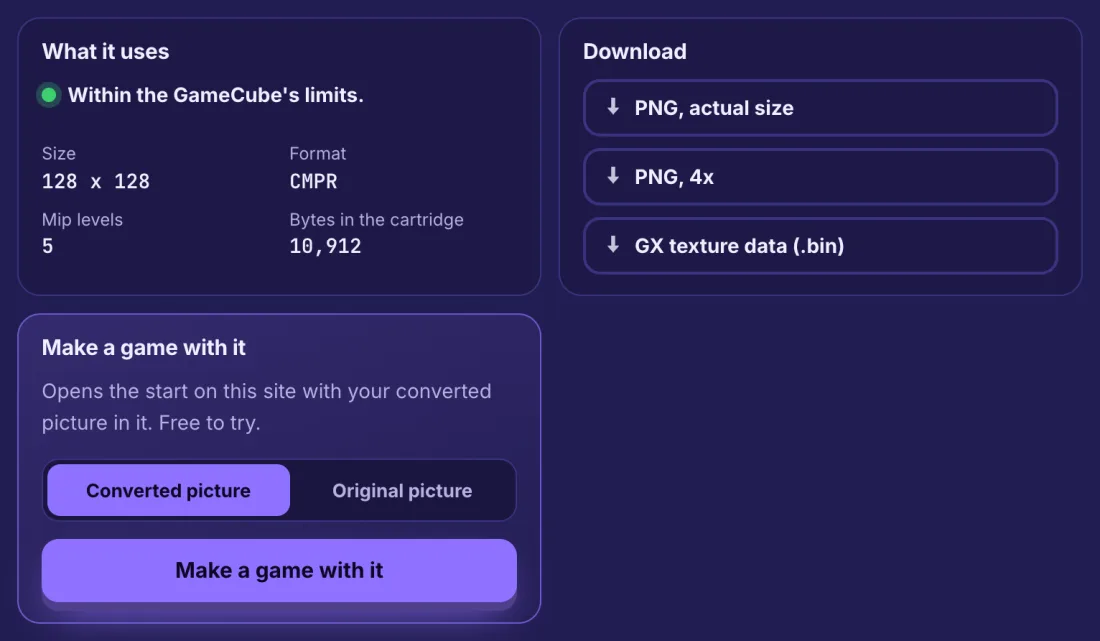
Every setting offered is one the GameCube can do. If you ask for something it cannot, the tool moves to the nearest legal value and says so. The result is also checked so that it goes back through the cartridge import unchanged.
Downloads
- PNG, actual size.
- PNG, scaled (for example 4x) for easy viewing.
- GX texture data (.bin): the texels in the GameCube's tiled order, largest level first and then each mipmap, exactly as our GameCube games store them.
The GameCube rules the tool keeps
| Rule | What the converter does |
|---|---|
| Sizes are powers of two | 8 to 256 a side |
| Texels are stored in tiles | I8 in 8x4 tiles, the 16-bit formats in 4x4, CMPR in 8x8 (from YAGCD) |
| Data is big-endian | The .bin is written big-endian |
| Mipmaps halve each level | Down to 8 pixels on the shorter side, stored after the base level |
| CMPR is block compressed | 8 bytes per 4x4 block, 4 bits a pixel |
| RGB5A3 shares its bits | 15-bit color when opaque, else 4-4-4 color with 3-bit alpha |
Tips: photos, drawings and gray textures
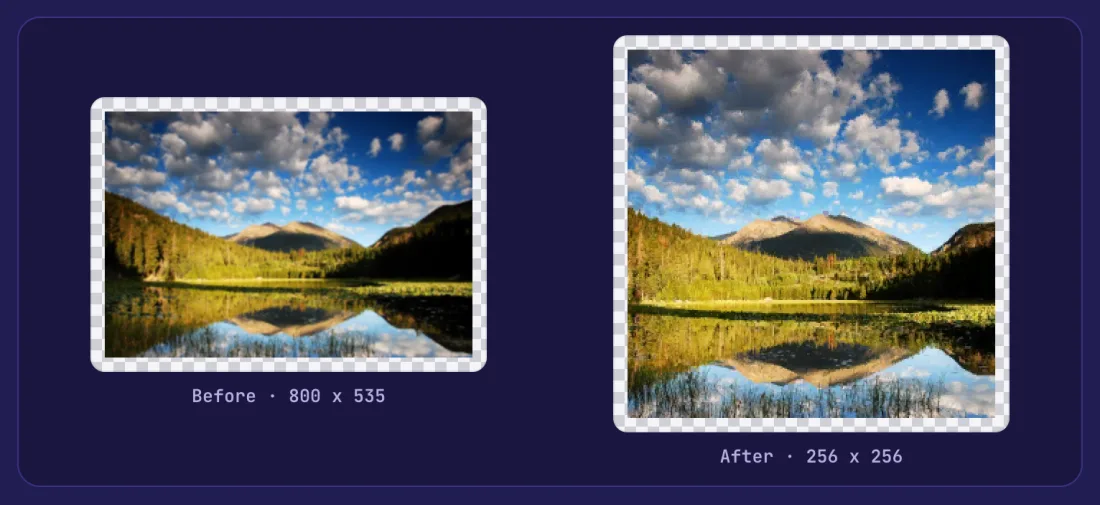
Photos work best as CMPR. The landscape below is an 800 x 535 photo, center-cropped to 256 x 256 (the largest size), and the clouds, trees and the reflection in the lake all hold up.
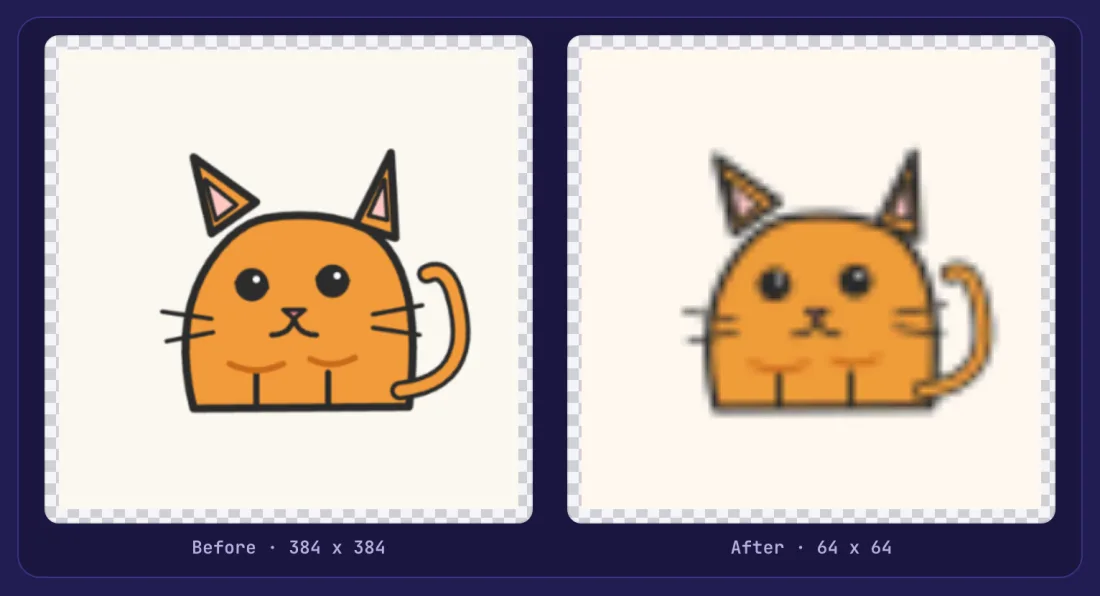
Drawings are a good fit for RGB5A3. A cat drawing converted to 64 x 64 keeps its orange body and dark outline, though the edges soften, because the preview is the bilinear filter the console uses. With the background kept, the cream backdrop stays in the texture.
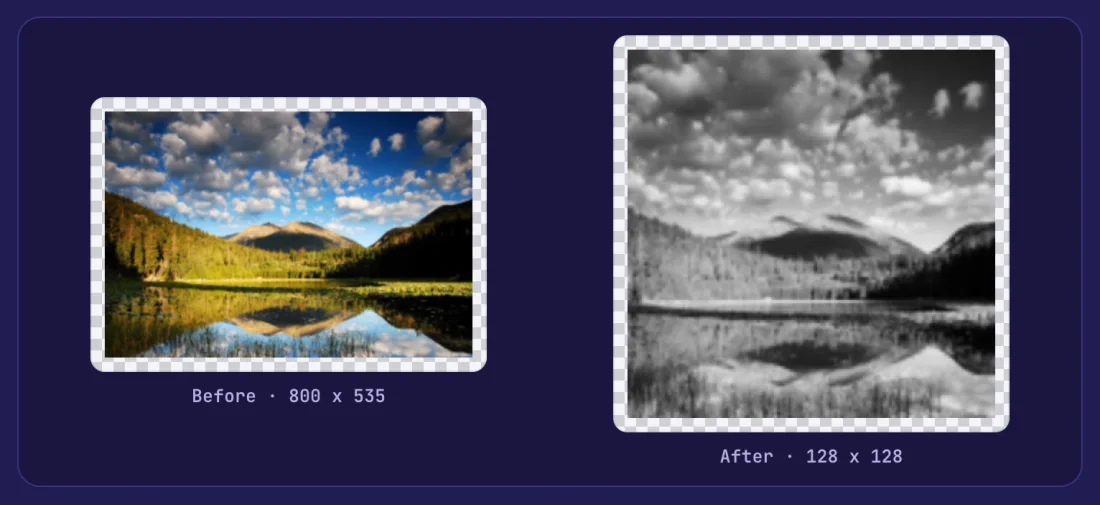
Gray textures use IA8 or I8. The same landscape at 128 x 128 in a gray format gives a clean black and white texture with only intensity, which is handy for masks, height maps or lighting detail.
A few more habits help. Start at the size you need, not the biggest. Turn mipmaps on for textures that will be seen at a distance, because the smaller levels stop shimmering. Turn them off for a flat picture shown at its own size, because it saves the bytes. Use the background switch before you judge the edges.
Make a game with it
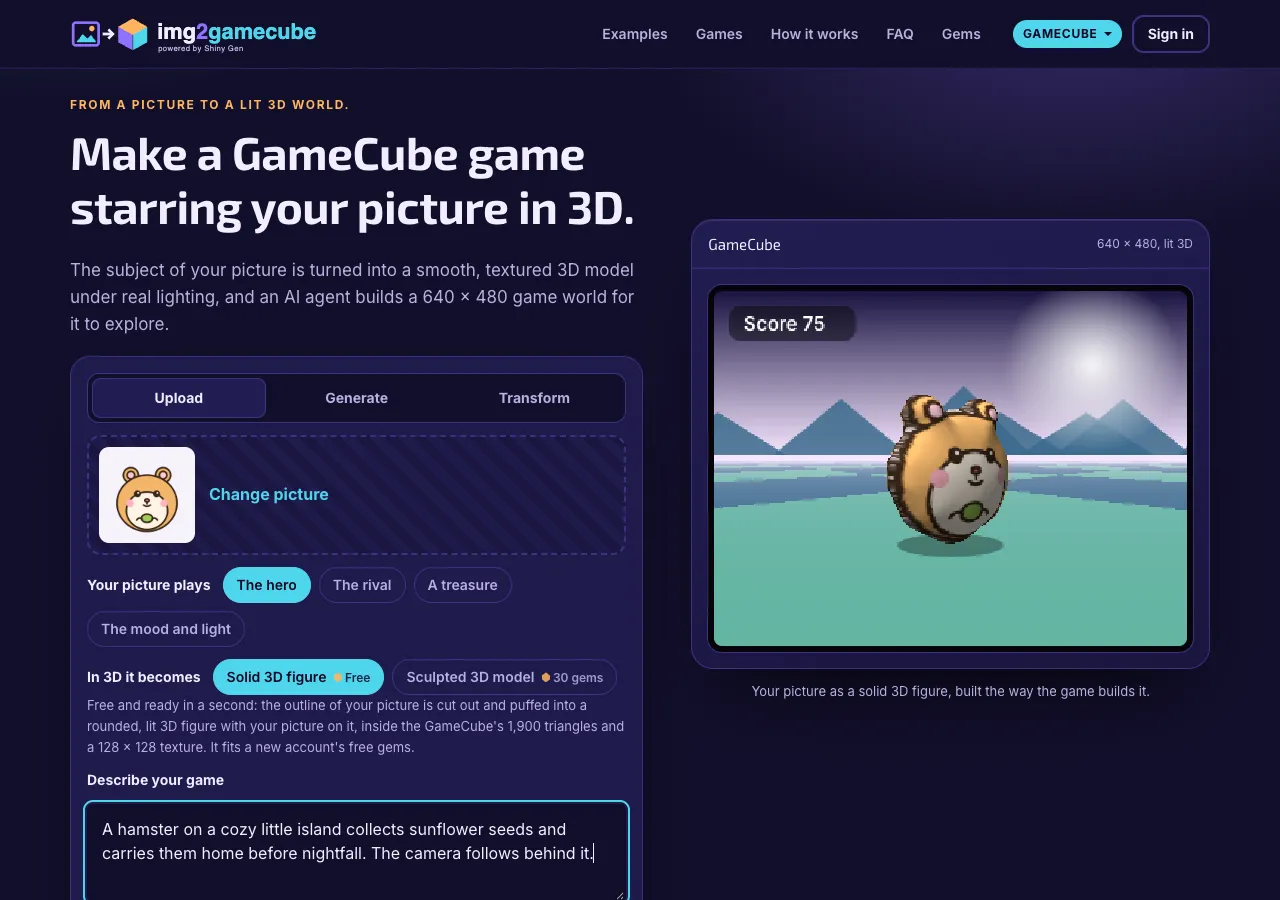
When the picture looks right, the "Make a game with it" card sends the converted picture (or the original) to this site's start card. There you say what the picture plays (the hero, the rival, a treasure, or the mood and light), choose how it becomes 3D, and describe your game.
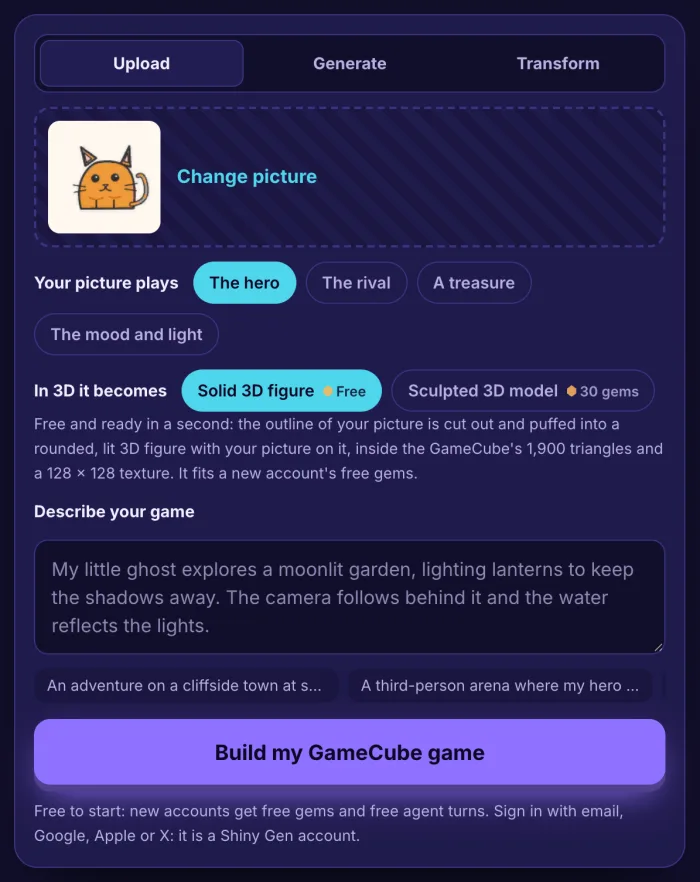
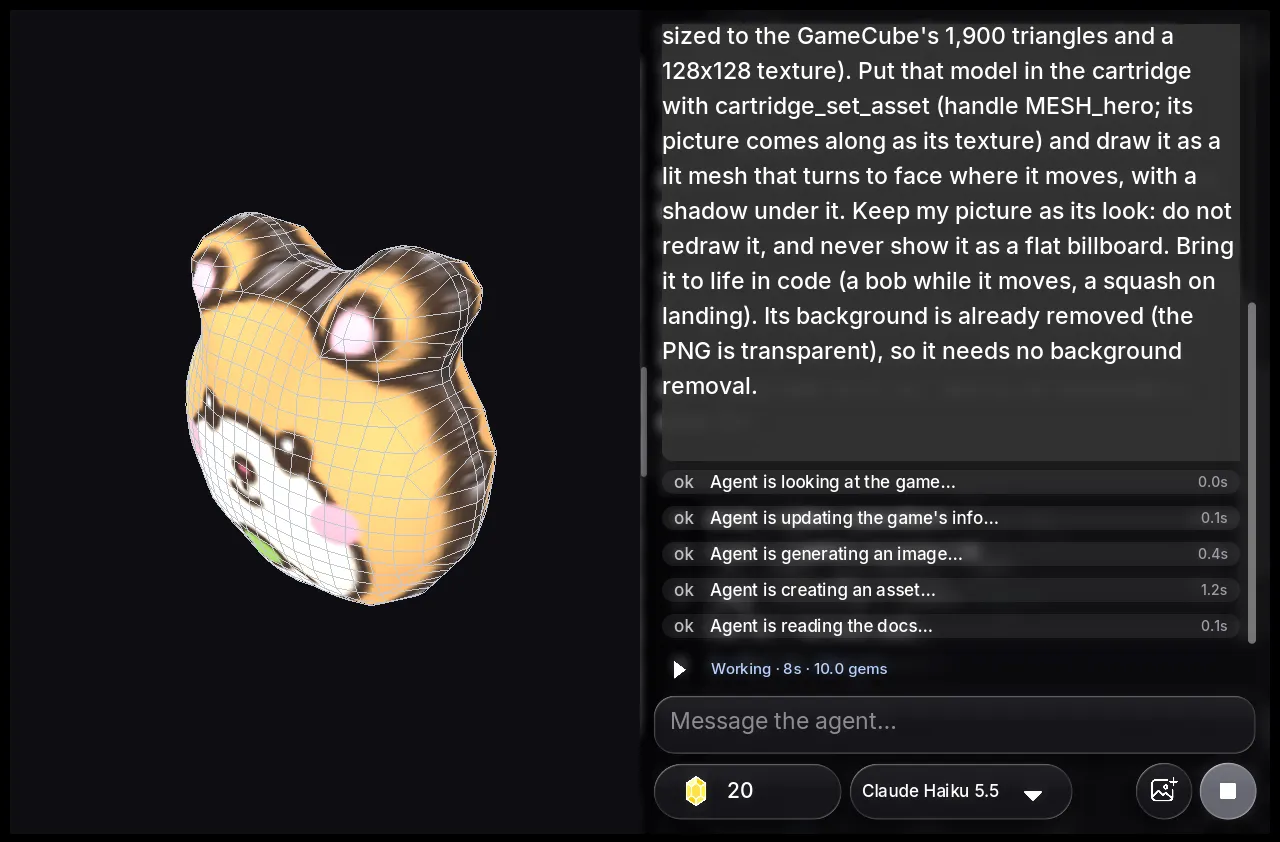
On the card, a "Solid 3D figure" is free and is cut out of your picture and puffed into a rounded, lit 3D figure with your picture on it, inside the GameCube's 1,900 triangles and a 128 x 128 texture. A "Sculpted 3D model" costs 30 gems. This is a Shiny Gen account on the site, and a new account starts with free gems. If all you need is the texture, the free GameCube texture converter is complete on its own.
FAQ
Is the GameCube texture converter really free?
Yes. There is no account and no gems, and your picture is never uploaded. It runs in your browser.
Which formats can it make?
CMPR, RGB5A3, RGB565, IA8 and I8, plus "Best for this picture", which picks CMPR when the alpha is all on or off and RGB5A3 when there is soft alpha.
What size should a GameCube texture be?
Powers of two from 8 to 256 a side. Our GameCube games use up to 256, and this site's 3D figure uses 128.
Should I turn mipmaps on?
Turn them on for textures seen from different distances; each level is half the one before, down to 8 pixels on the shorter side, and is stored after the base level. Turn them off to save bytes on a flat picture.
How does it compare with what the engine does?
It is the engine's own converter. In our tests, 172 cases (4 pictures with 43 settings) give byte-identical results to the engine, and 92 of them re-imported through the cartridge import unchanged. A sweep of 1,836 conversions across every setting extreme of the 5 consoles stayed inside every hardware limit.
What does the .bin file contain?
The "GX texture data (.bin)" holds the texels in the GameCube's tiled order, big-endian, with the largest level first and then each mipmap, exactly as our GameCube games store them.
Further reading
Last updated: November 17, 2026